
Connect your workspace to Nevian
Follow the workspace checklist from Meta and checkout setup through a test visit and purchase.
What you need
- A Nevian workspace with an active plan and permission to configure connections.
- The ad account, checkout account and a page you can edit.
- A safe test checkout or the built-in purchase simulation.
Steps
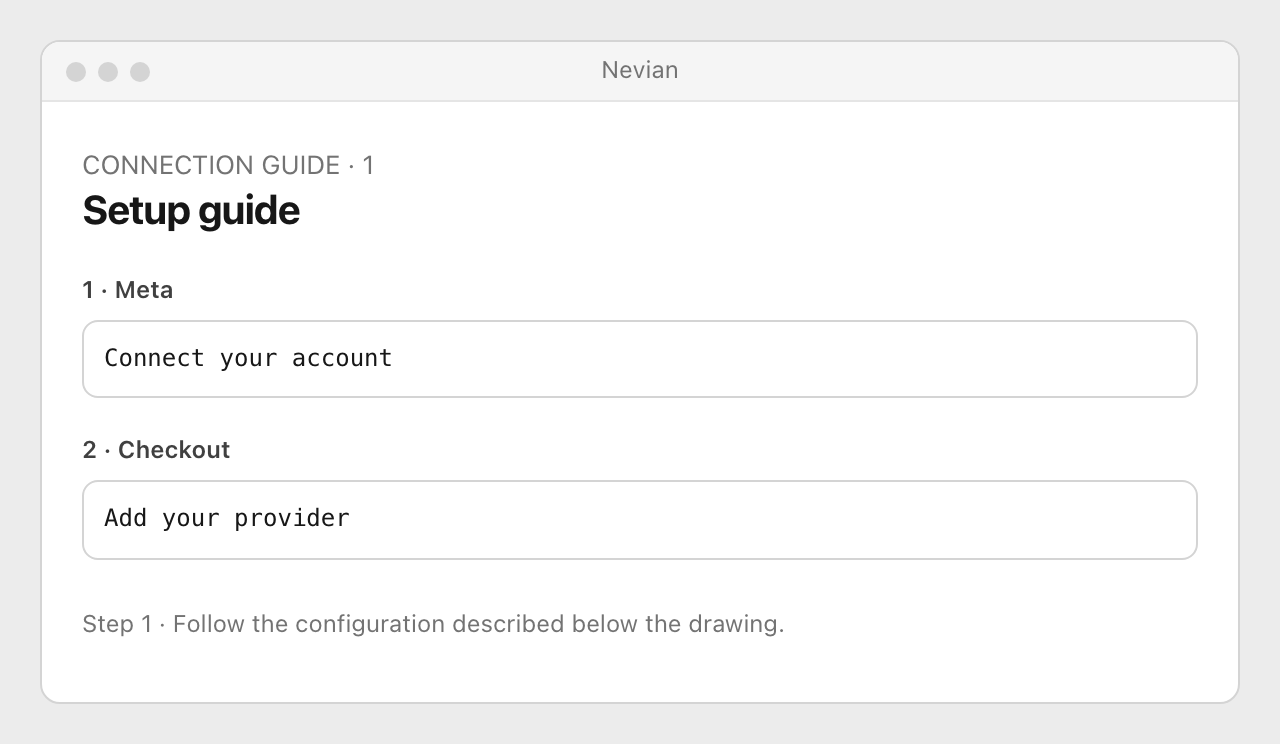
Open Tools → Setup guide. Start with the first incomplete item; use the Meta connection guide for the accounts and permissions you need.
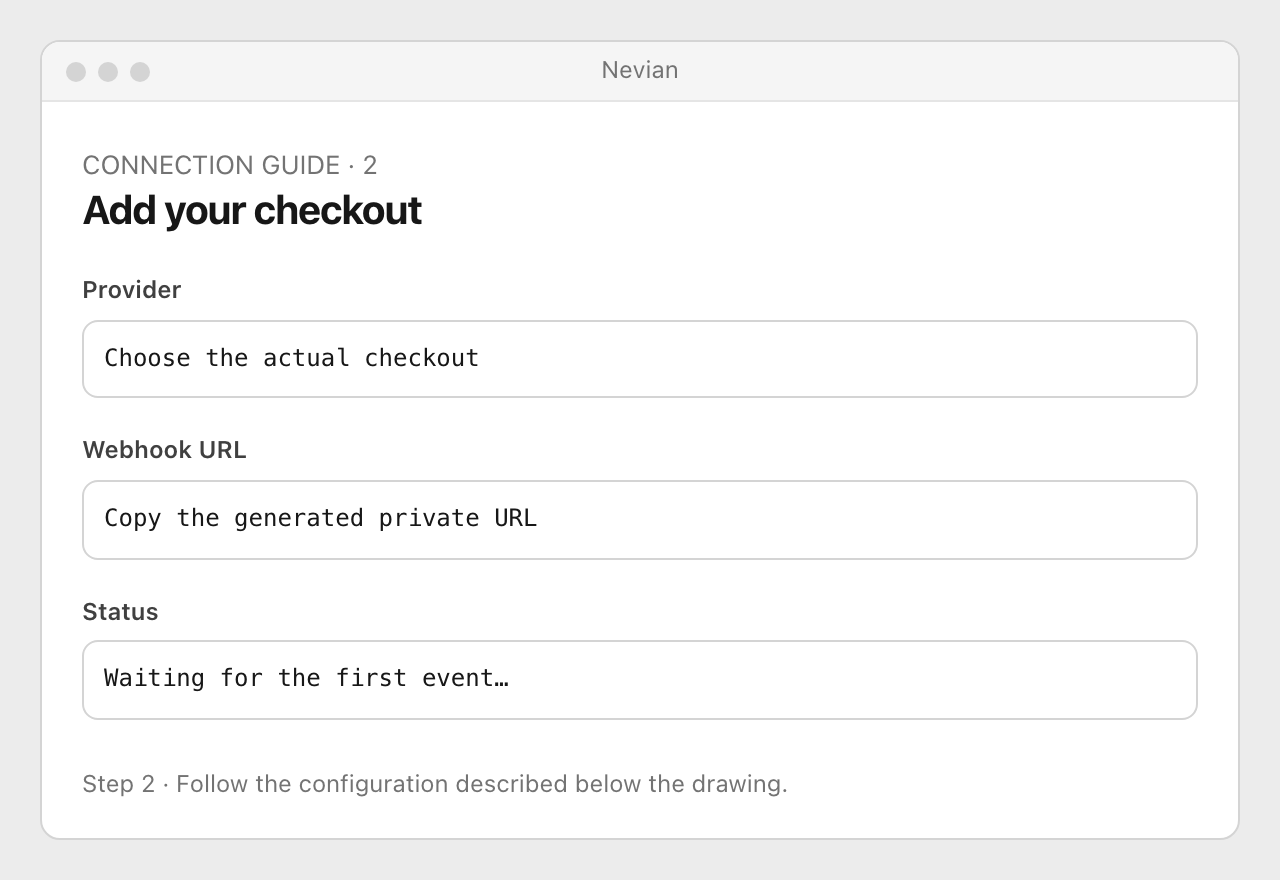
In Add your checkout, select the provider to create its integration, then follow its linked tutorial. Copy its private URL, save any required secret and check the live receipt status.
Install the workspace script in your page’s
<head>. Use Check page with your page URL, then create the tracking link and copy its generated ad parameters or redirect URL.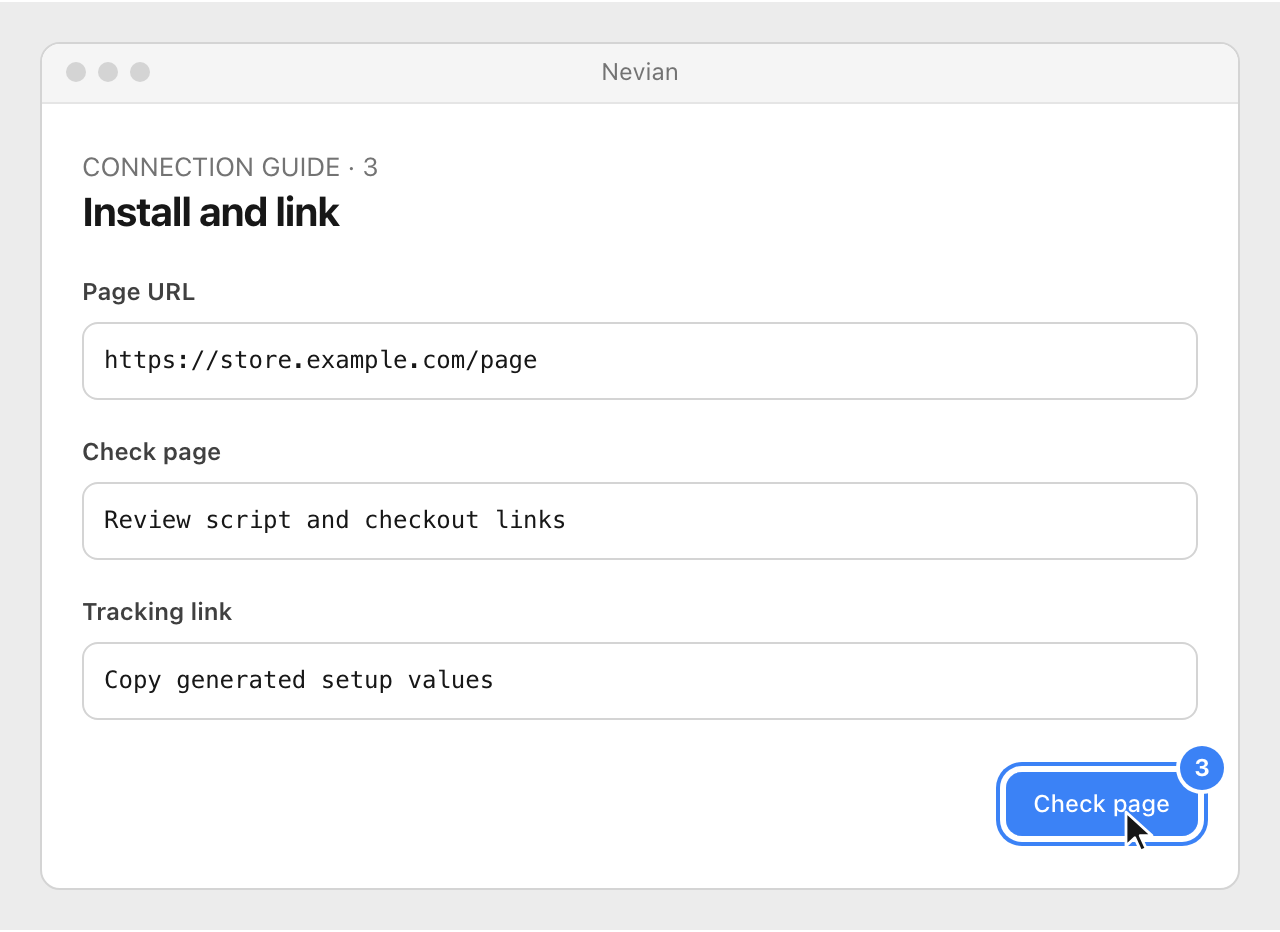
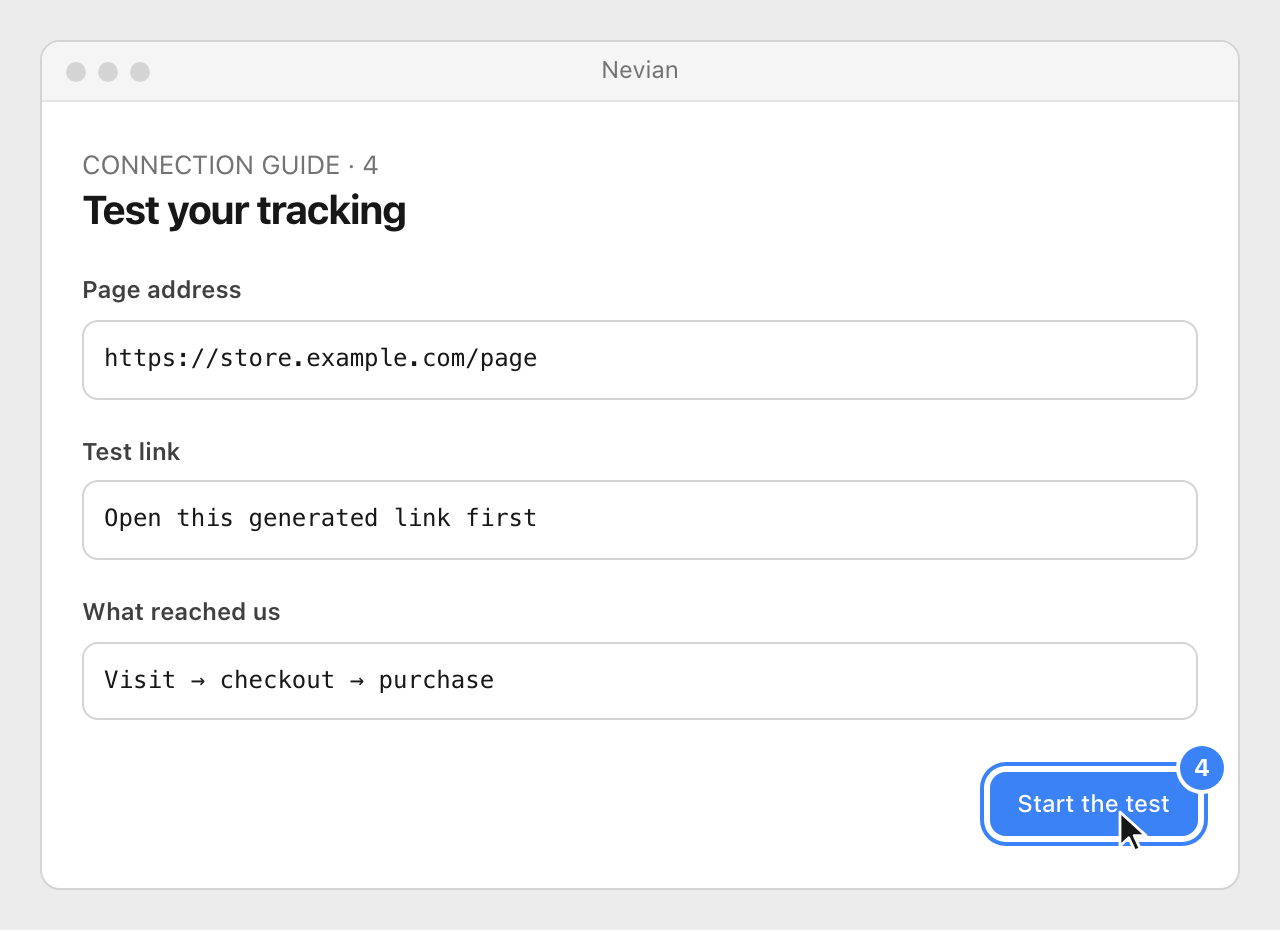
Open Test your tracking, enter Page address and choose Start the test. Open its Test link, tap the buy button and use an actual test purchase or Simulate a purchase on this visit.
Check that it works
- The checklist reflects received events, not only completed forms. The test step shows which parts actually reached Nevian.
- A simulated purchase verifies the Nevian path but does not prove the checkout webhook is configured. Verify a provider test separately. The current guide includes a fifth testing step after the four setup steps.
Problems
Waiting for a page view
Open the page with the correct workspace script installed. A successful static page check alone does not create a visitor event.
Simulate a purchase is disabled
Open the generated test link first and wait for its visit to appear.
Sync paused
Check the workspace plan. Existing connections can remain visible while synchronization or delivery is paused.
Still stuck? Write to [email protected].
Images are our own drawings and configuration diagrams, not screenshots. Use the current values from your account; the examples contain no live credentials.