
Connect Kwai Ads to Nevian
Carry Kwai campaign and ad references into your visits so the sales your checkout reports can be attributed in Nevian.
What you need
- A Kwai advertiser account and permission to edit the destination of website ads.
- A Nevian workspace with an active plan, a tracked landing page and a connected checkout.
Steps
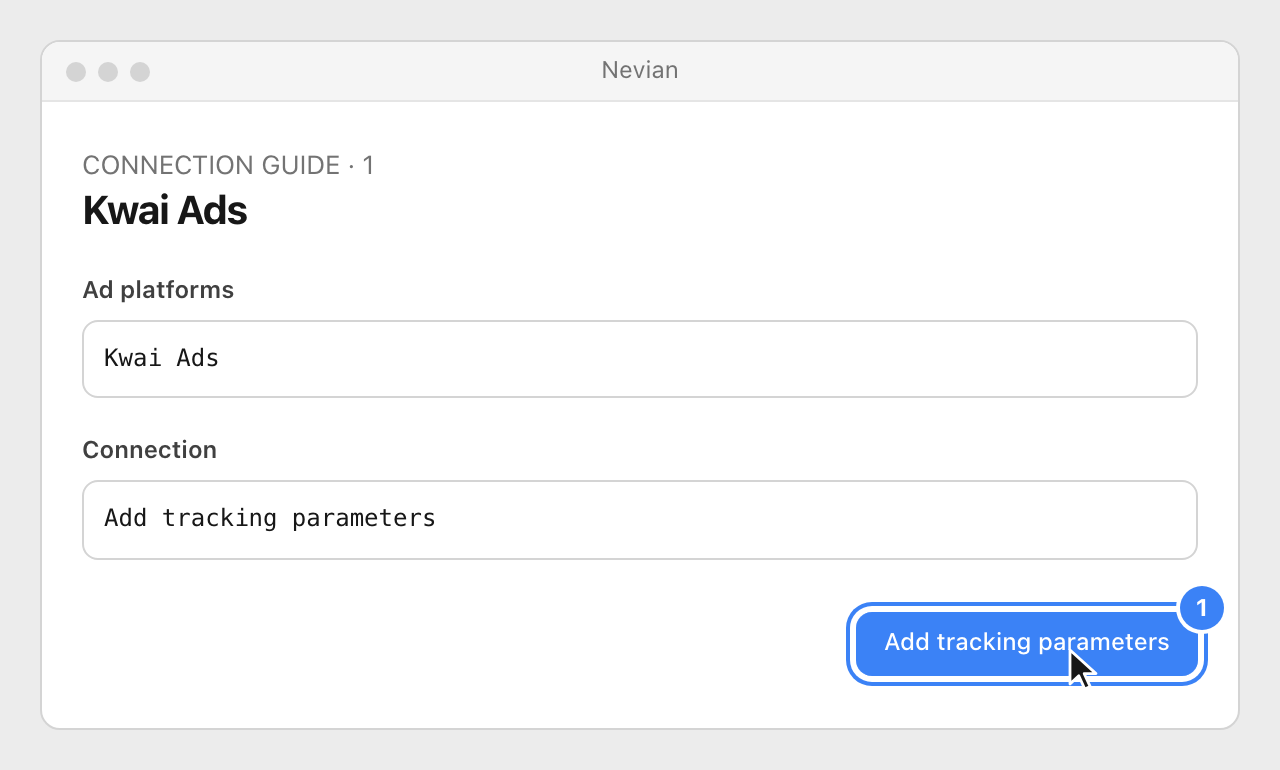
In Nevian, open Ad platforms, choose Kwai Ads and use Add tracking parameters. Follow the connection steps to name the platform and copy its URL parameters.
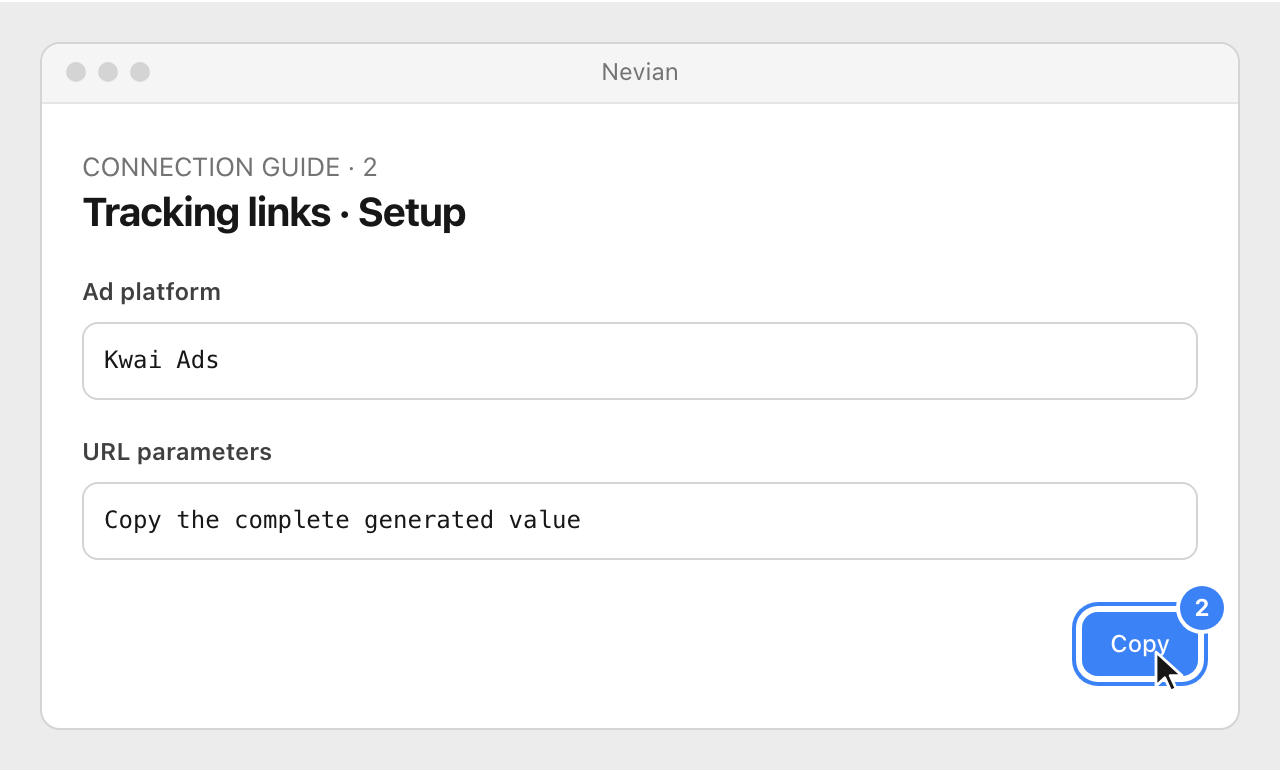
Create or open your tracking link, choose the Kwai platform and copy the generated parameters from Setup. Use the generated string so its workspace and link identifiers are preserved.
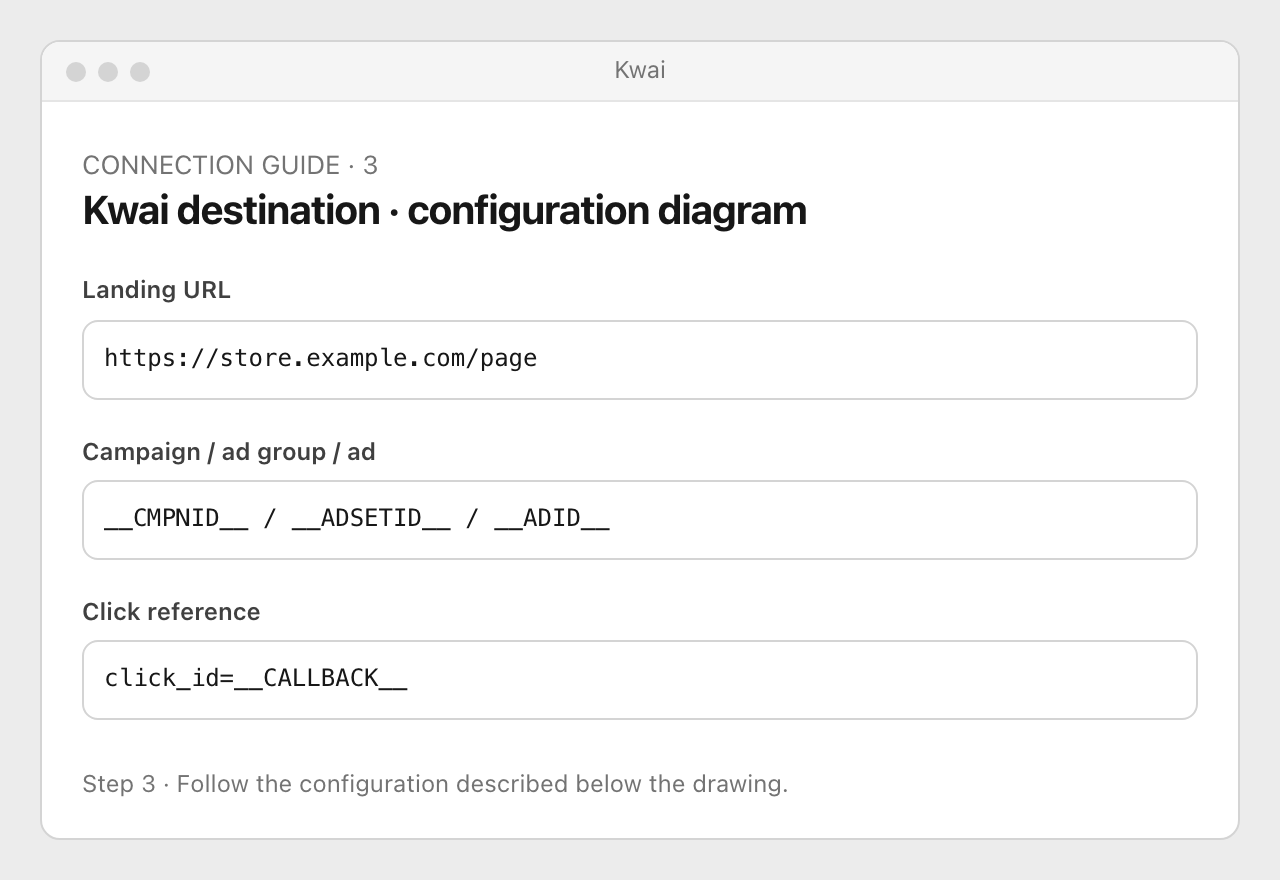
In Kwai, edit the destination of your website ad and append the copied parameters to its landing URL. The public advertiser documentation does not establish a stable editor menu path; ask your Kwai account support for the destination-URL control if it is not visible.
Open the ad preview, confirm that the landing page still loads, then check the resulting visit in Nevian. Preserve existing query parameters and use only one
?in the final URL.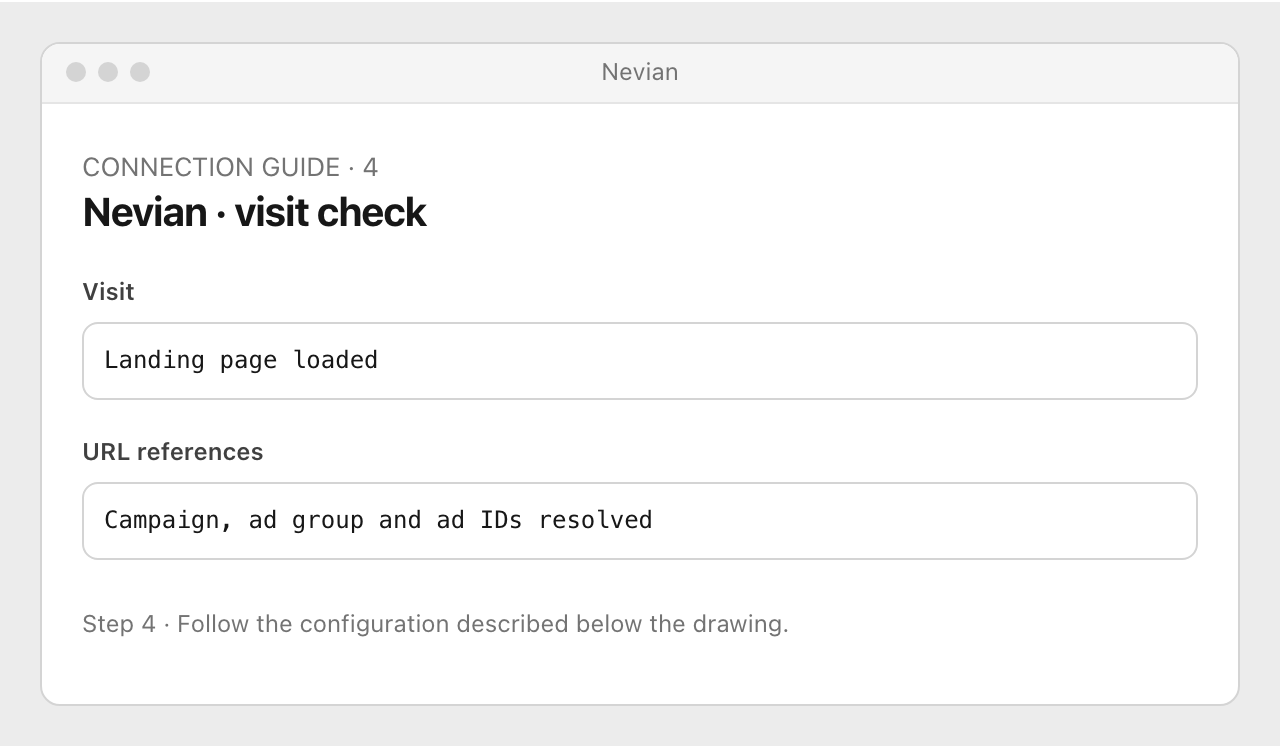
Check that it works
- The tracking script loads on the destination page and a visit appears in Nevian.
- A live click should resolve the Kwai macros to IDs; a pasted draft URL may still show literal macros. This setup does not connect an API for cost synchronization.
Problems
Literal __ADID__ in a visit
Open an actual ad preview or supported test click. Confirm macro support with Kwai if the live click keeps the placeholder.
The page already has a query string
Append parameters with &, preserving the current values. Do not paste a second question mark.
No spend appears
URL tracking supplies attribution references. Kwai spend must use the cost method configured on the tracking link; this connection does not promise automatic spend import.
Still stuck? Write to [email protected].
Images are our own drawings and configuration diagrams, not screenshots. Use the current values from your account; the examples contain no live credentials.