
Connect Meta product catalogs to Nevian
Create a product catalog, keep its feed current and link the pixel that sends product signals to Meta.
What you need
- A Nevian owner, admin or member role and an active plan.
- A Meta connection with access to the business portfolio and its catalogs.
- A public HTTPS product feed in CSV, TSV or XML when using a scheduled feed.
Steps
Open Catalogs in Nevian and choose Create catalog. If Meta is not connected, follow Connect Meta to use catalogs first.
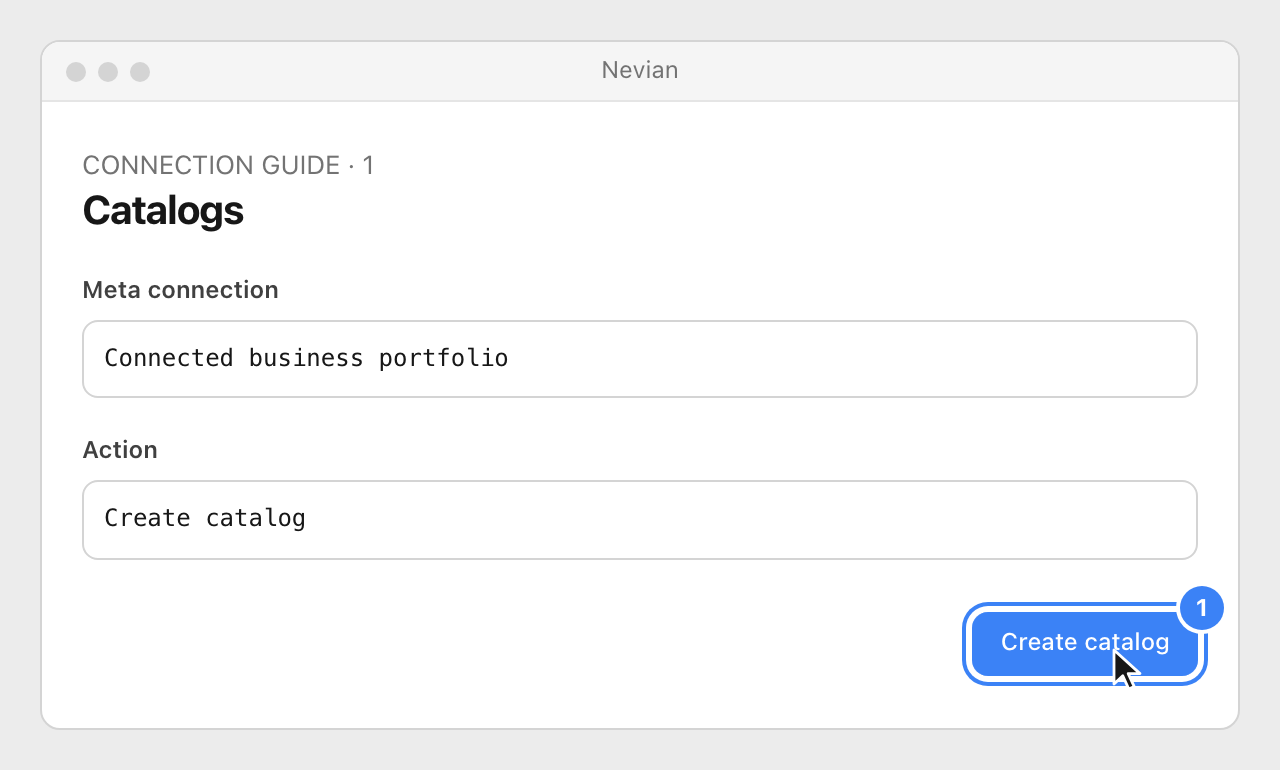
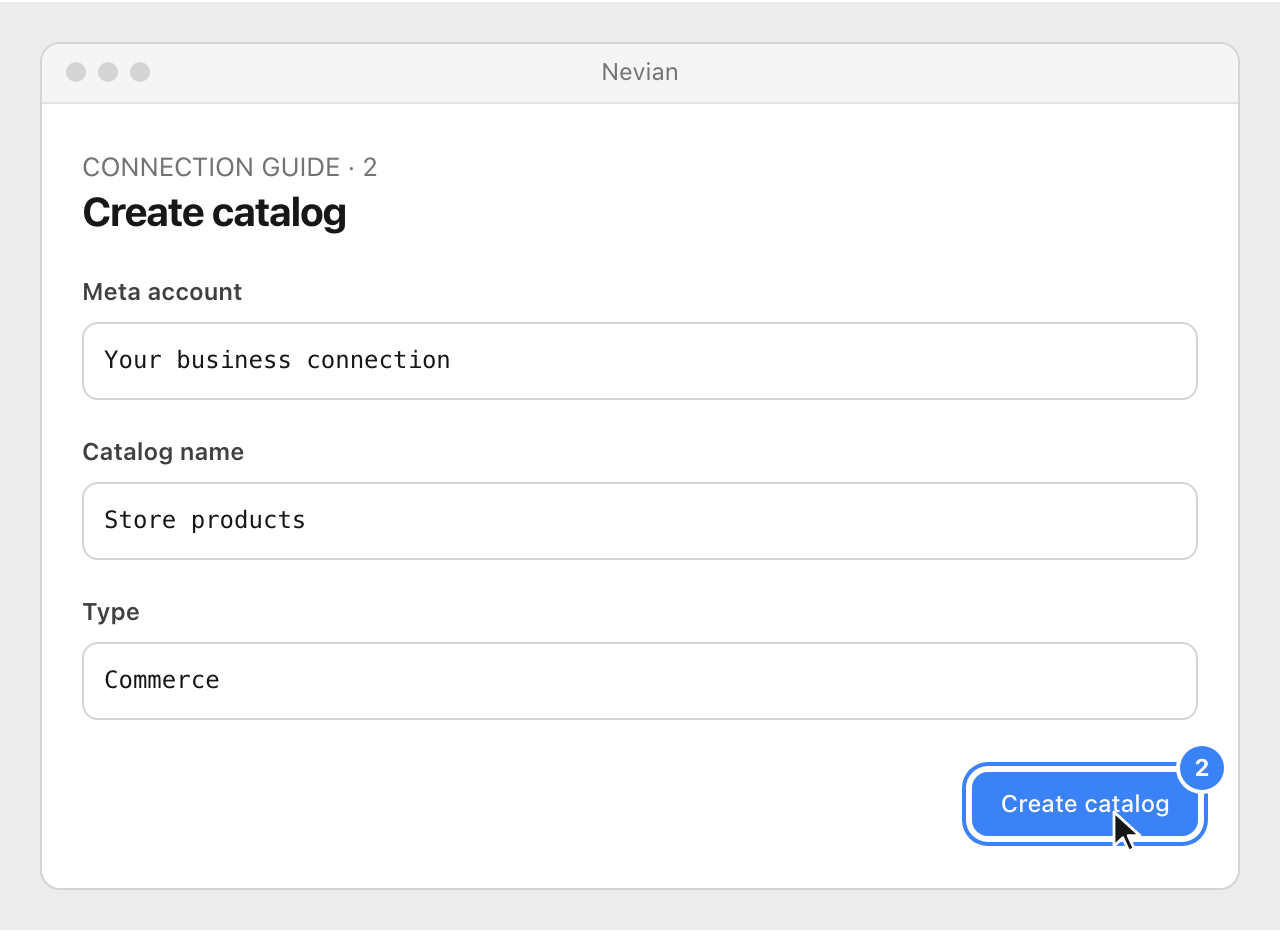
Choose Meta account, enter Catalog name and create the catalog. The catalog is created in the business portfolio associated with that connection.
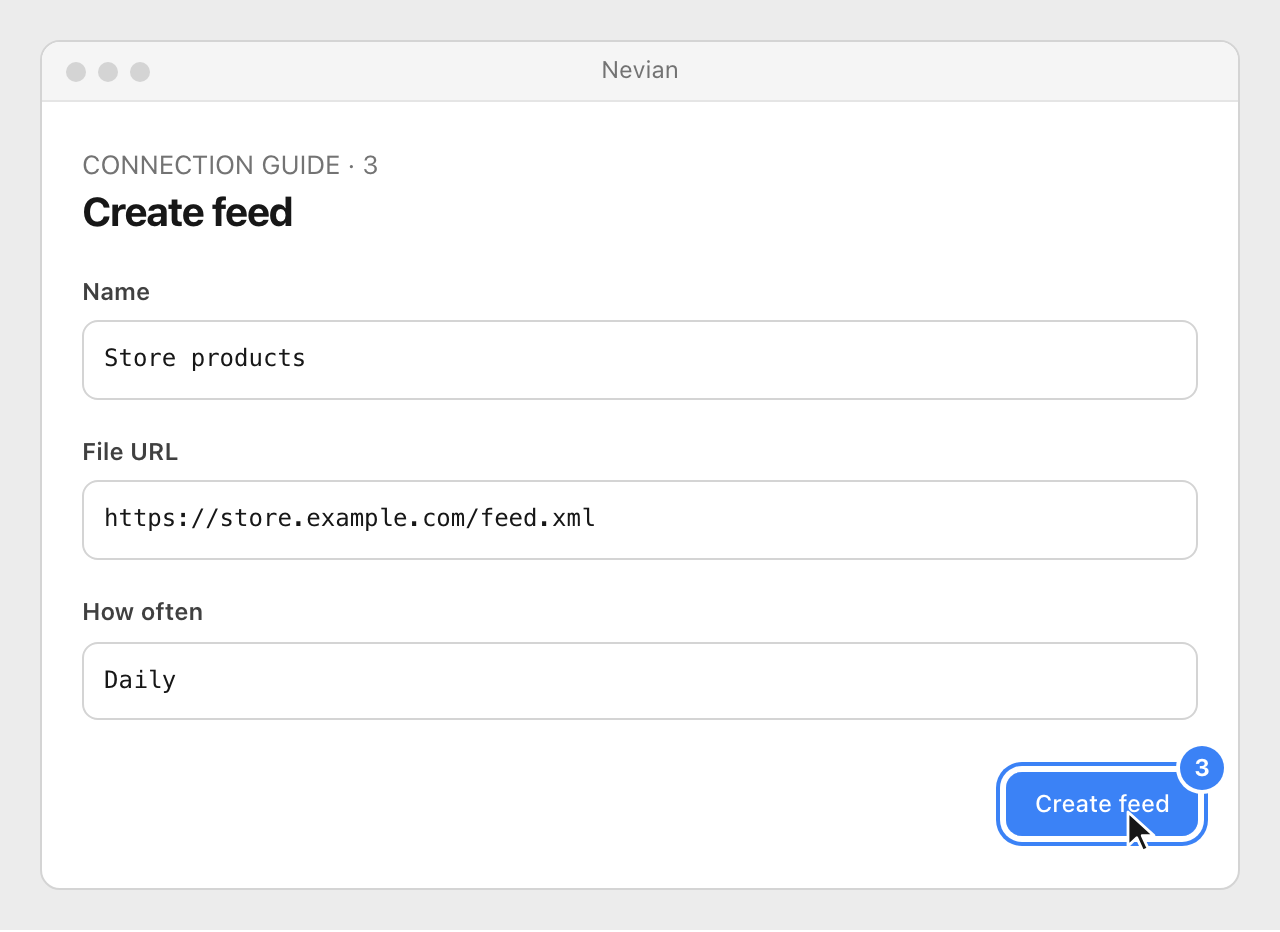
Open the catalog’s Feeds tab and choose Create feed. Enter its Name, public File URL and How often; the schedule’s hour uses the business portfolio time zone.
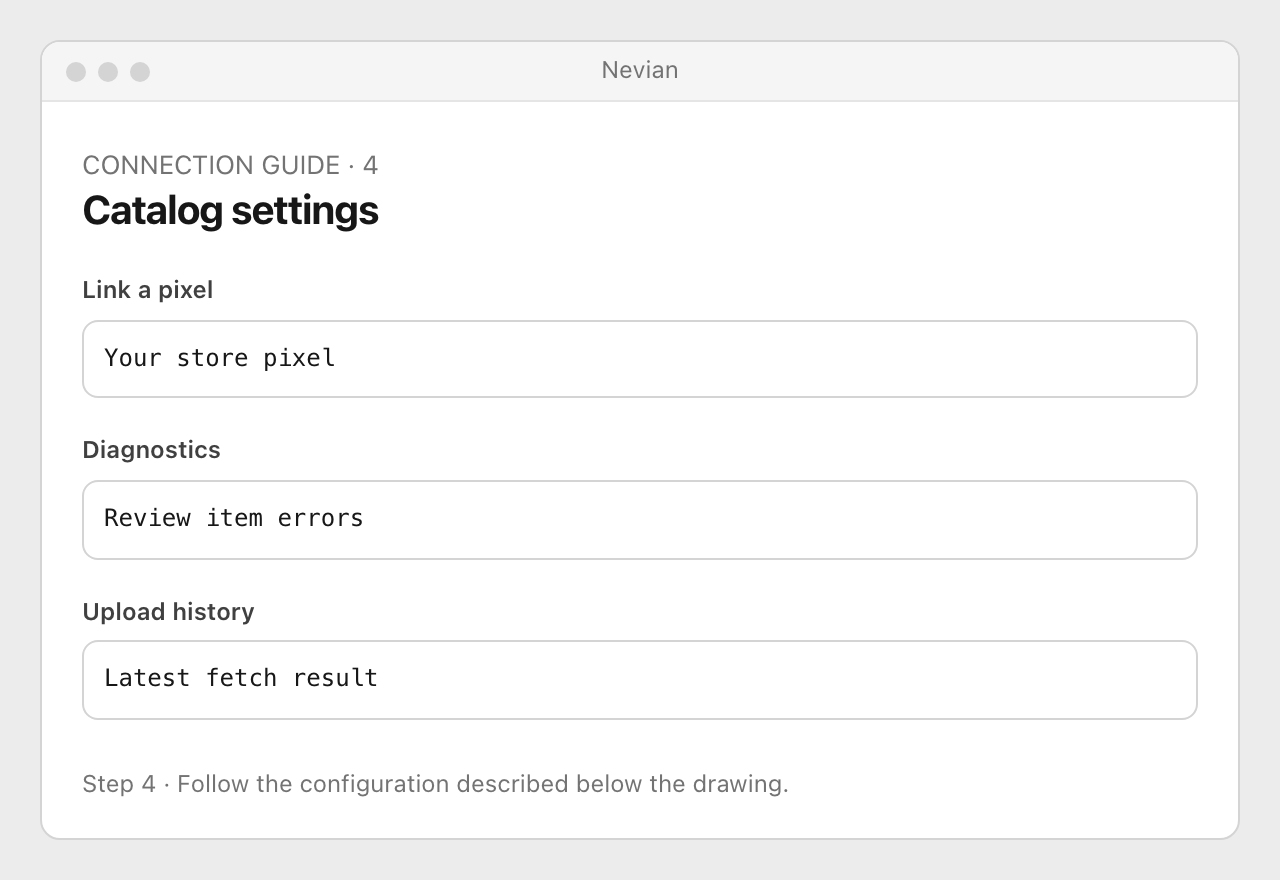
In Settings, use Link a pixel to choose a pixel from the same Meta connection. Check the feed’s Upload history and the catalog’s Diagnostics.
Check that it works
- Use Refresh from Meta when comparing catalog state with Meta.
- Product IDs in the feed must match the product IDs sent by your storefront events. A linked pixel alone cannot correct mismatched IDs.
Problems
No catalogs yet
Confirm the connected business portfolio can access the catalog. If it is shared outside Nevian, refresh after permissions are granted.
No uploads yet
Wait for the scheduled time or use Fetch now. Check that the feed is public and returns a supported file.
No pixel linked yet
Select a pixel owned by or shared with this Meta connection. Do not create another pixel just to bypass missing access.
Still stuck? Write to [email protected].
Images are our own drawings and configuration diagrams, not screenshots. Use the current values from your account; the examples contain no live credentials.