
Connect Payt to Nevian
Connect Payt so sales and payment changes reach Nevian and can be matched to the visit that brought the buyer.
What you need
- A Payt account with permission to configure notifications.
- An active Nevian plan and an owner, admin or member role. Viewers cannot connect integrations.
- Keep the checkout and Nevian tabs open side by side.
Steps
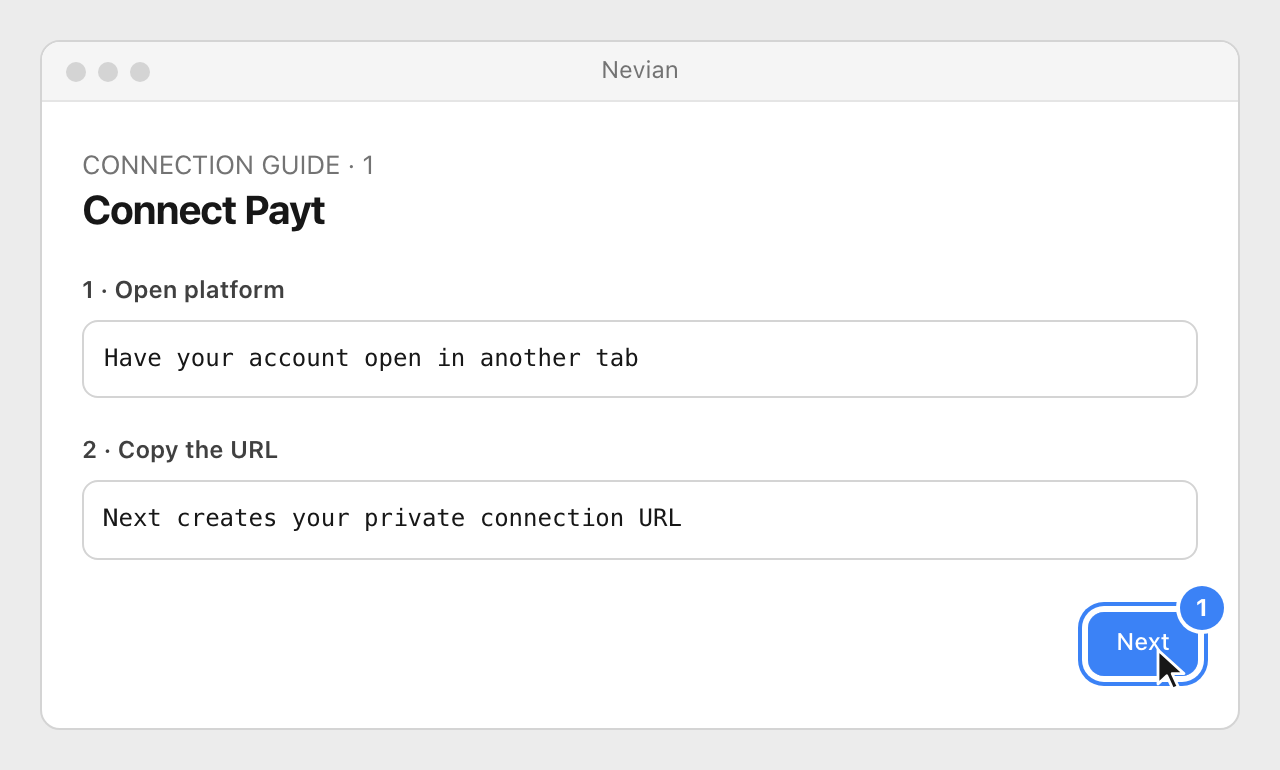
In Nevian, open Integrations → Add integration (Connect provider in an empty workspace), choose Payt and click Next with the platform open in another tab.
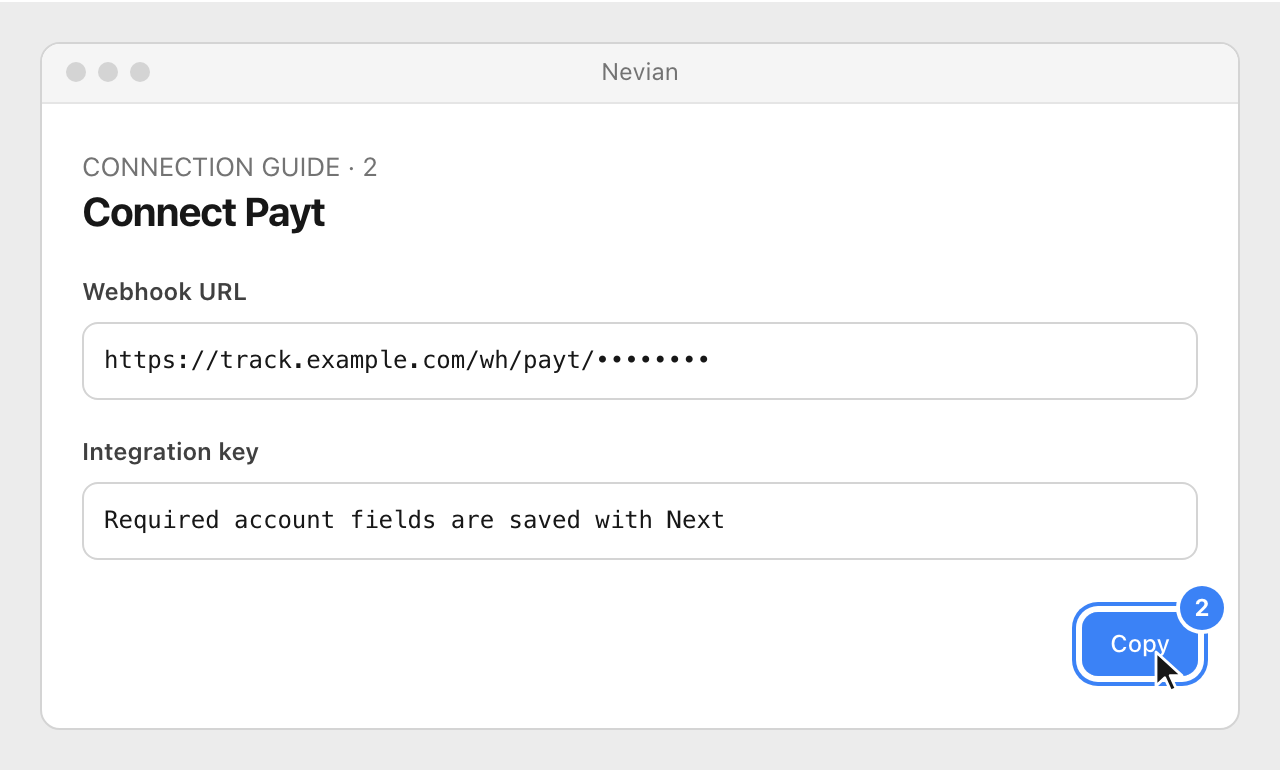
Copy the complete Webhook URL. Keep it private and leave this window open while you configure Payt.
In Payt, open Ferramentas → Postbacks and click + Cadastrar. Give the connection a name and choose your products or affiliate offers.
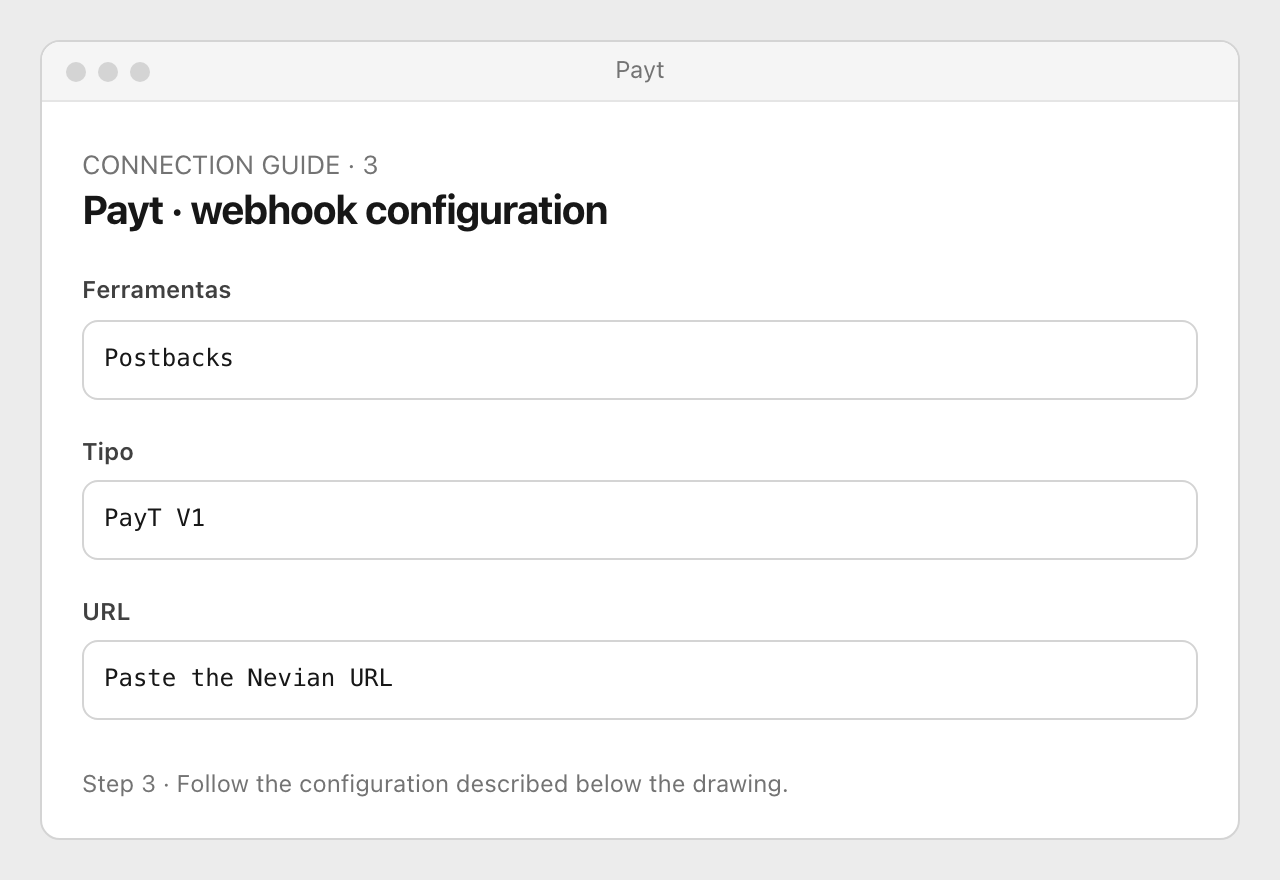
Keep the postback active, choose PayT V1 and paste the URL. Select order, upsell and subscription events; do not choose the flat payload variant.
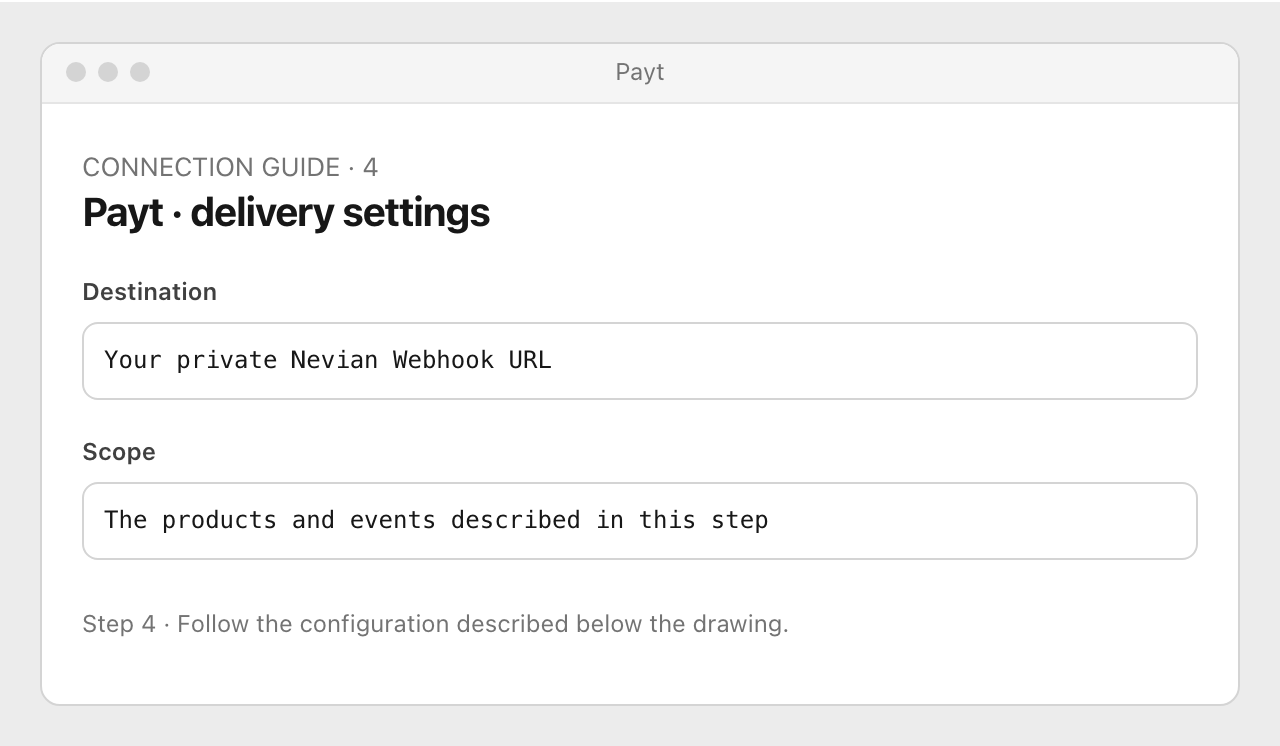
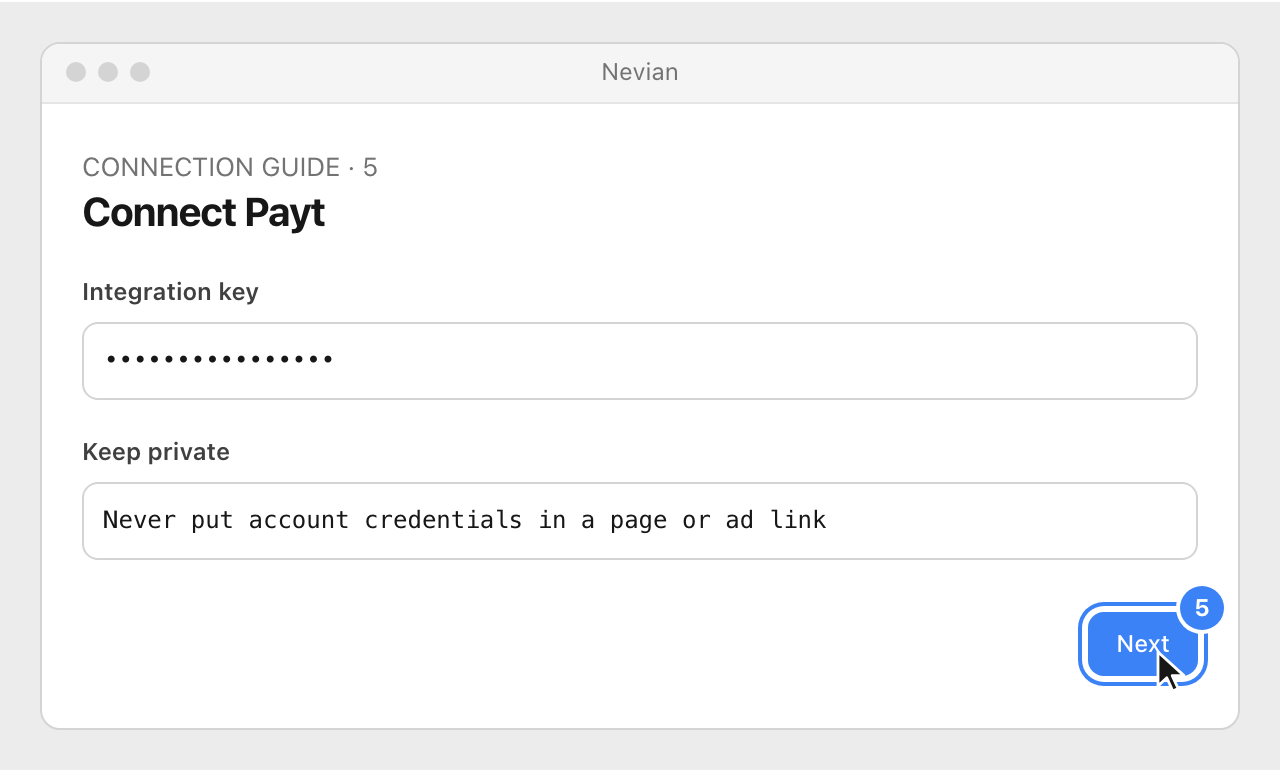
Return to Nevian, if you use the optional token, enter Integration key and click Next to save it before sending an event. Use the same value configured for this webhook; for a token you generate yourself, use that exact value in both places. Leave an optional token empty in both places if you do not use it.
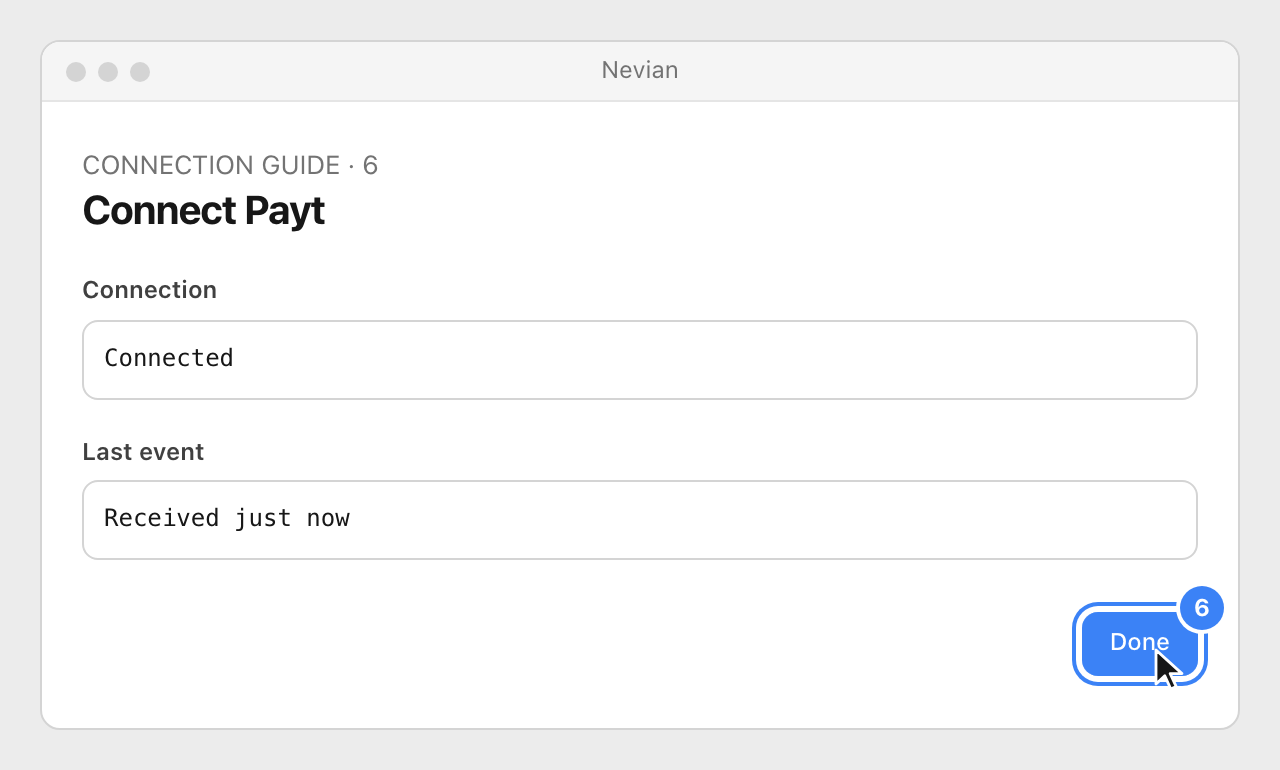
Send an order using Payt’s homologation environment. Events marked as homologation are recorded as tests and excluded from normal totals. Back in Nevian, look for Connected, then click Done.
The Integration key is optional. If configured in Nevian, it must match the integration key sent by Payt.
Check that it works
- Open Logs → Webhooks and confirm the provider, order ID, event and result. A delivered webhook can be logged without creating a sale when the event is informational.
- The tracking script adds
btkto links tocheckout.payt.com.brandpayt.site. Check the actual checkout link after an ad visit.
Problems
Waiting for the first event…
Check the complete URL, event subscriptions and product scope. If you rotated the integration key, replace the URL in the provider too.
The call was rejected
Read the reason in Logs → Webhooks. Check the secret when one is configured, then resend the original event after fixing the configuration.
No matching click
Check the click ID instructions above on a real ad visit. A provider test usually has no ad click; that alone does not mean delivery failed.
Still stuck? Write to [email protected].
Images are our own drawings and configuration diagrams, not screenshots. Use the current values from your account; the examples contain no live credentials.