
Connect your landing pages to Nevian
Register the pages between your ad and offer so redirect funnels can send people to the correct page and checkout button.
What you need
- A published landing page you control and can edit.
- An active Nevian plan and permission to add landing pages.
Steps
Open Landing pages and add a new landing page. The form is called New landing page.
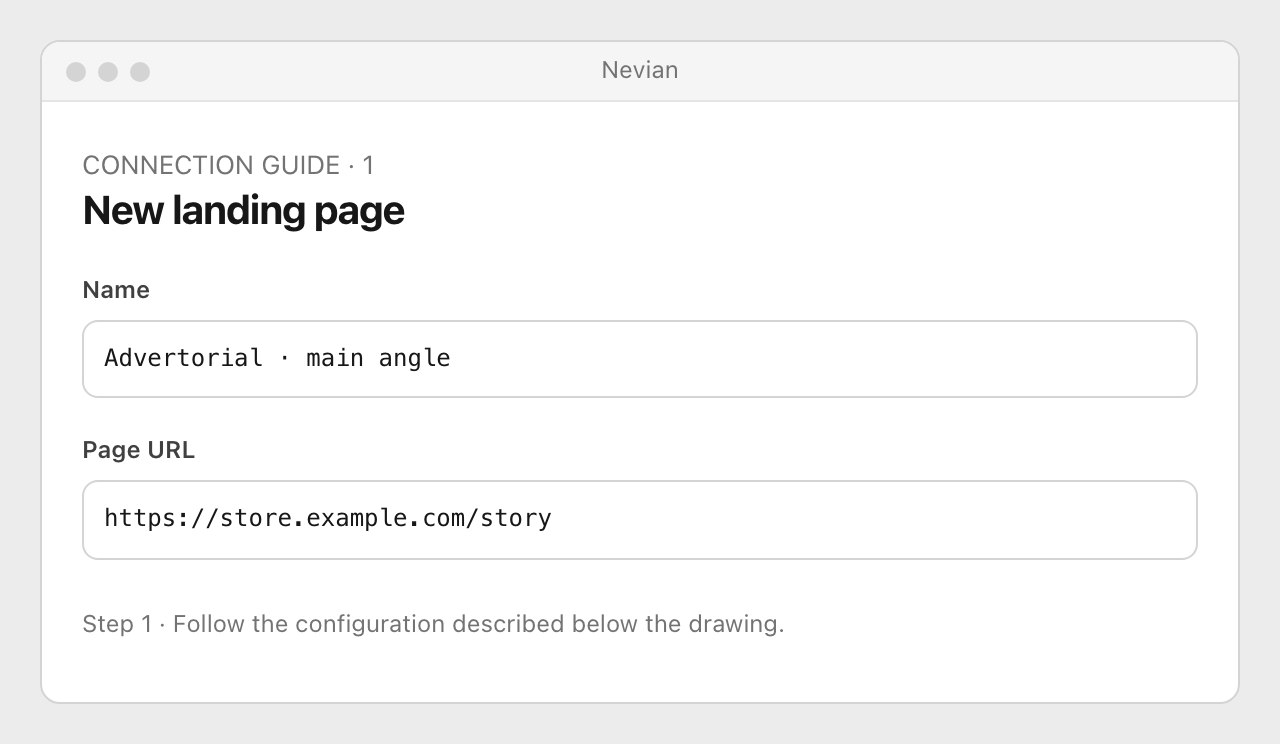
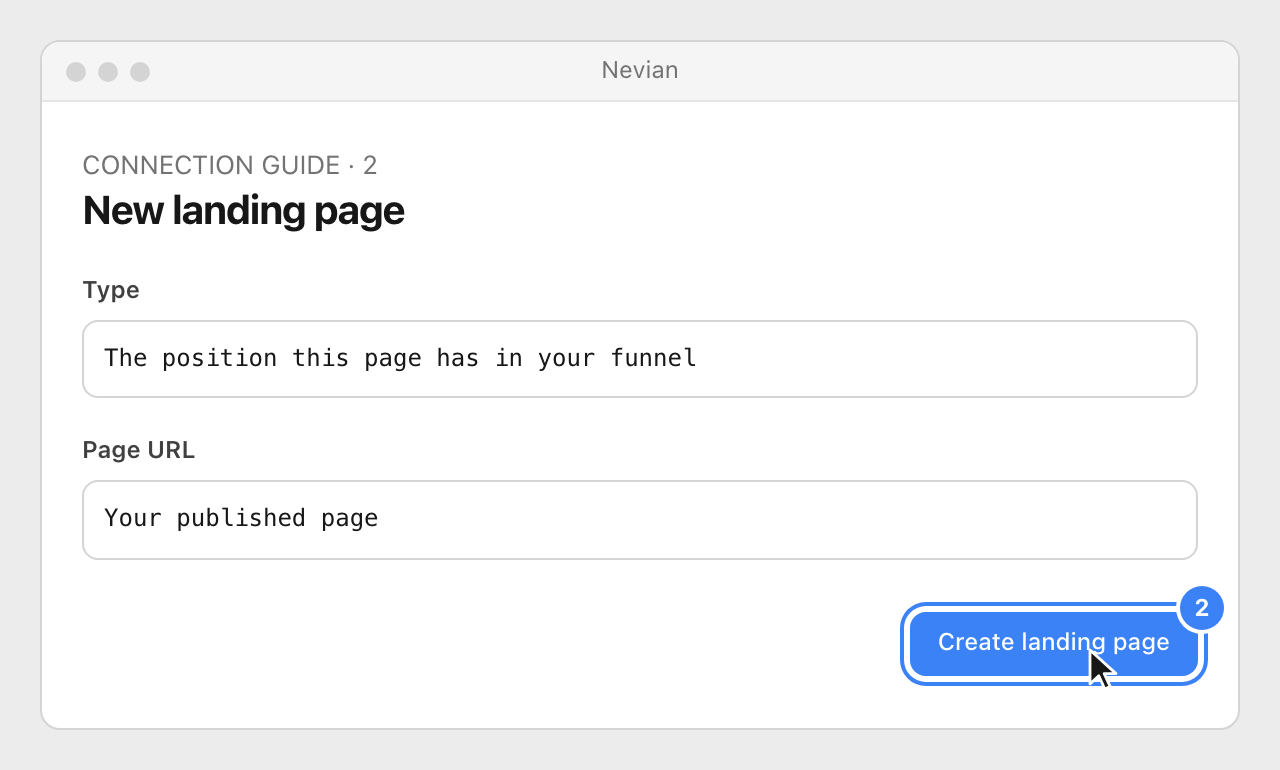
Enter Name, the full Page URL and the appropriate Type, then choose Create landing page.
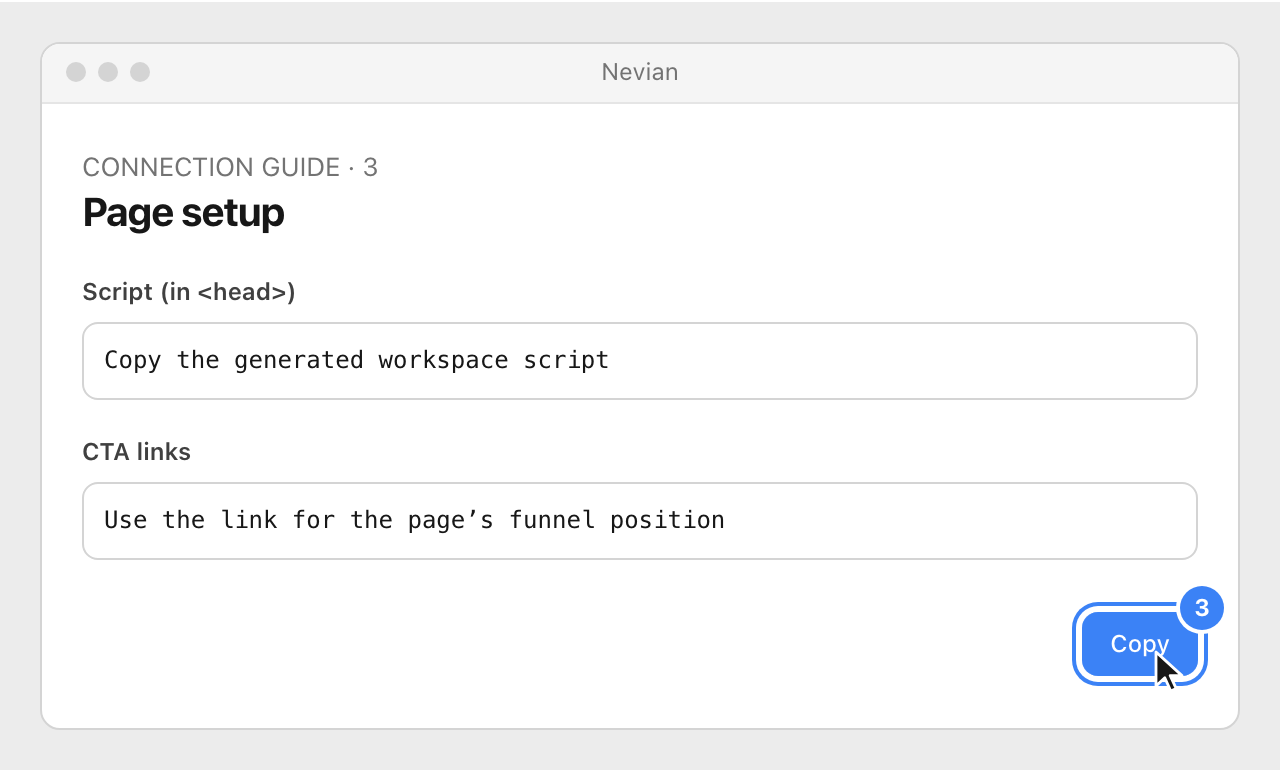
Open Page setup, copy Script (in <head>) into the page and place its generated CTA links on the matching buttons. The workspace script works across landers, pre-landers and thank-you pages.
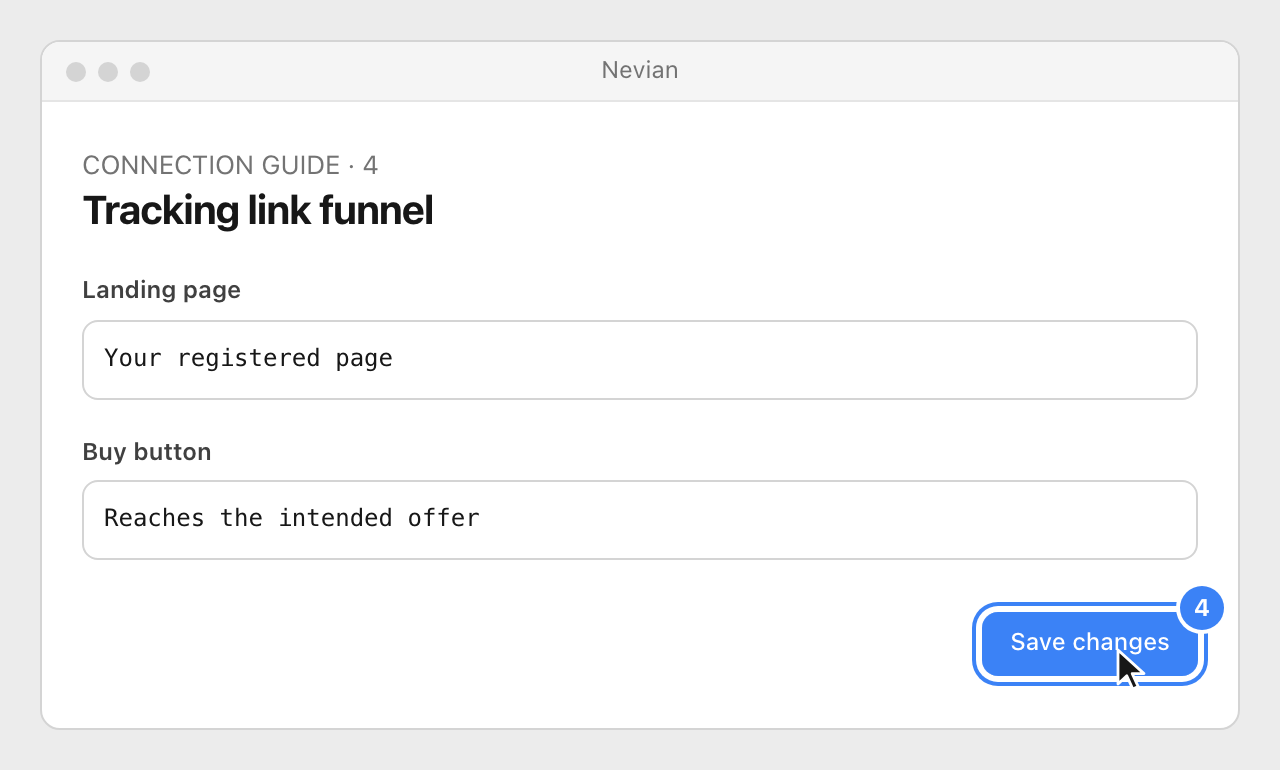
Choose the page in your tracking link’s funnel, save it and test the complete ad-to-page-to-offer path.
Check that it works
- The page loads, the visit is recorded and its CTA preserves the click reference on the way to checkout.
- Direct tracking can use a scripted page without registering it here; this list is for pages selected by a funnel.
Problems
The page is not available in my funnel
Check its type and active status. Archived pages are kept for historical reporting, not normal selection.
A button loops back to the same page
Use the buy-button CTA for an offer, and the pre-lander CTA only for moving to a landing page.
The visit is recorded twice
Install the workspace script once per page. Remove accidental duplicate installation, preserving any checkout-specific connection instructions.
Still stuck? Write to [email protected].
Images are our own drawings and configuration diagrams, not screenshots. Use the current values from your account; the examples contain no live credentials.