
Connect your click receiver to Nevian
Send each recorded click to your own HTTPS endpoint for downstream processing without holding up the visitor.
What you need
- Owner or admin access, an active plan and a public HTTPS endpoint you control.
- A receiver that accepts GET query parameters or POST JSON and can reply within five seconds.
Steps
Open Tools → Click forwarding and find Forward clicks to a URL.
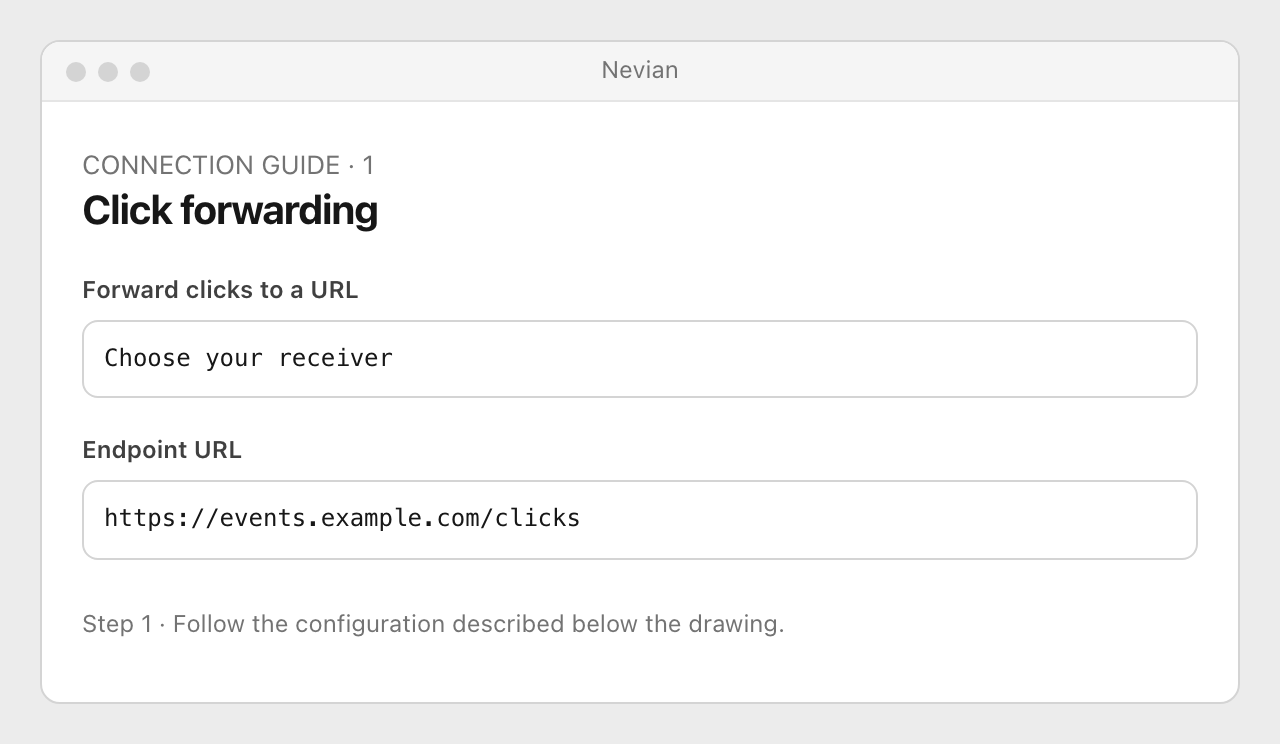
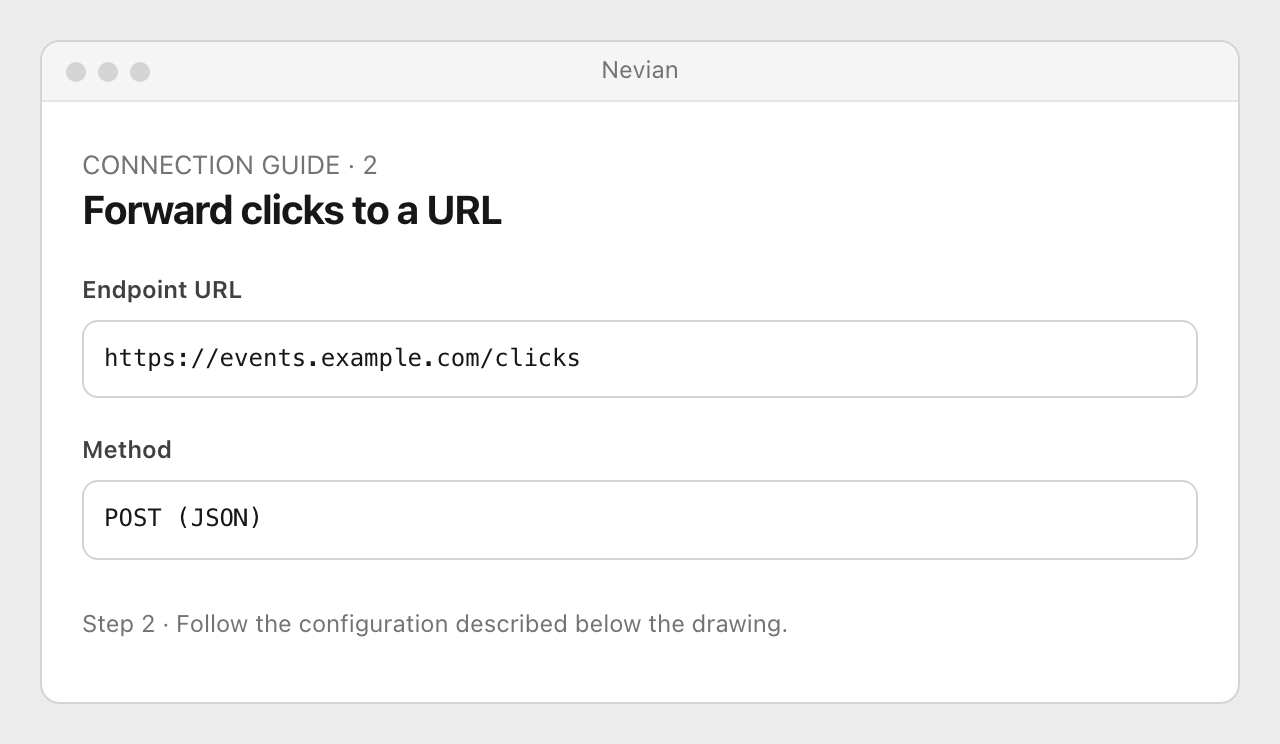
Enter Endpoint URL and choose Method: GET sends query parameters; POST sends JSON. Keep any endpoint credential private.
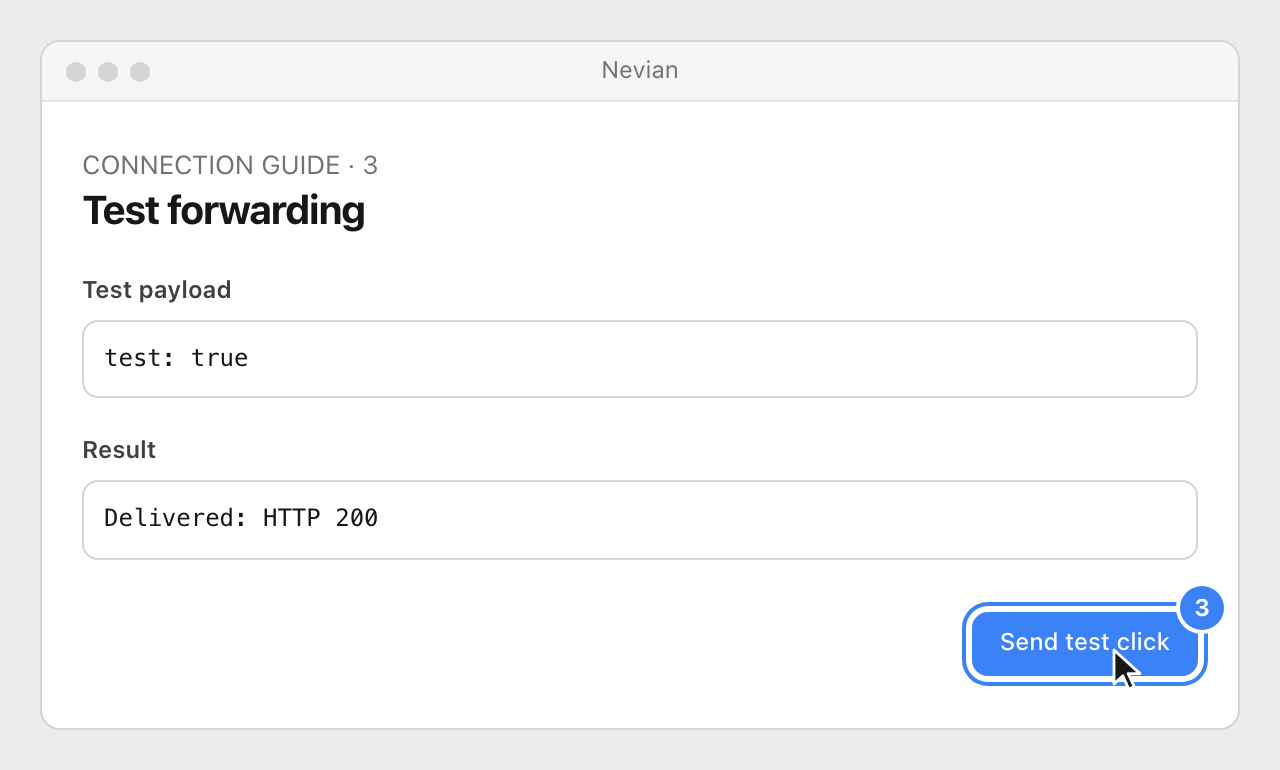
Select Send test click and check the receiver’s response. This checks the values currently entered in the form, before saving them.
Save the configuration and turn forwarding on. Open a tracked page, then inspect Last delivery and Logs → Click forwarding.
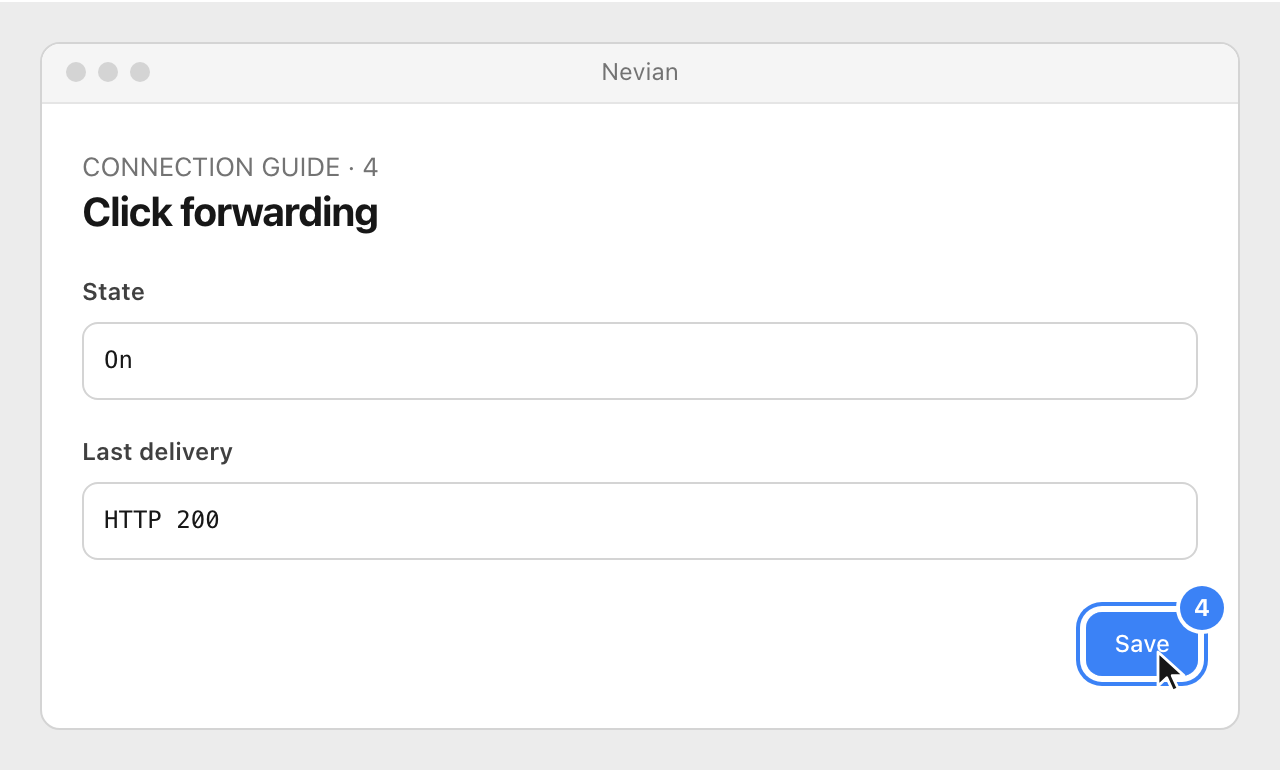
Check that it works
- The test is received with
test: true; it is not stored as a real click. - A fresh tracked visit reaches your endpoint once. Delivery is asynchronous, with one attempt and a five-second timeout.
Problems
The URL must start with https://.
Use a public HTTPS endpoint. Local addresses and private network destinations are not supported.
Test delivered, but live clicks are missing
Save the form, ensure forwarding is on and generate a new tracked visit. The test button does not save or enable forwarding.
The endpoint times out
Reply quickly and process work in your own background queue. Failed forwarding is logged; it does not delay the visitor or retry automatically.
Still stuck? Write to [email protected].
Images are our own drawings and configuration diagrams, not screenshots. Use the current values from your account; the examples contain no live credentials.